How to Add a Windows 7 Computer to an Existing Domain?
Windows 7 is although quite user friendly it however can also be configured to work as a client to any Domain Controller in any client-server network scenario. Except to Home series of Windows 7 flavors all other versions can be added to domain.
There are a few prerequisites that a Windows 7 computer must have before it can be added to a domain. These prerequisites are:
- Computer must not have Windows 7 Starter Home Basic or Home Premium flavors of operating systems installed as these flavors cannot join a domain.
- Domain Controller must be present in your network.
- DNS server must be present in your network.
- A computer must be connected to the network either via cable or through wireless medium.
- If DHCP server is not present in your infrastructure manual IP address should be provided to the computer.
- If DHCP server is not present in your infrastructure manual DNS address should be provided to the computer.
Once the above prerequisites are met you can add your Windows 7 computer to the existing domain by following the steps given below:
- Log on to the computer with the user account that has Administrative privileges.
- Click on Start button.
- In the start menu right-click on Computer and select Properties.
- In the View basic information about your computer page under Computer name domain and workgroup settings frame click on Change settings link.
- In the System Properties box ensure that you are on Computer Name tab and click on Change button.
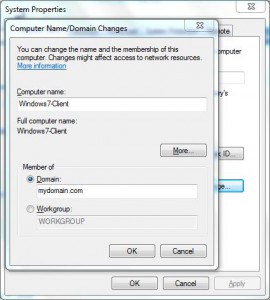
- On the Computer Name/Domain Changes box select Domain radio button under Member of section and type the name of the domain to which you want to add this computer.
- Click on Ok button.
- In the opened window provide the credentials of domain administrator and click on Ok button to accept and confirm your configuration. Alternatively you can also provide credentials of a domain user account to this computer to the domain.
- You will be displayed with a message box welcoming you to the domain and Windows will ask you to restart the computer.

Note:
Any domain user account credentials can be provided while joining a computer to a domain. A domain user account can add up to 10 computers to a domain using its own credentials.