How to Disable Autoplay For All Users in Windows 7?
Whenever your insert a CD/DVD or any other storage media in your computer Windows 7 automatically detects it and displays its contents by opening a new window in Windows Explorer. This is a great feature which Windows 7 offers. However there might be times when this feature makes your computer vulnerable to virus attacks. This is because when you insert a CD or DVD Windows 7 starts detecting its contents and finally it opens the contents of the media in a new window. Suppose the CD/DVD or flash drive that you have inserted had virus in it. In this case virus residing in the media will be self-executed and will infect your system within fraction of seconds. Therefore it is recommended to disable Autoplay feature to prevent your computer from getting infected with virus accidentally. Process to turn off Autoplay feature is given below:
- Click on "Start" button.
- At the bottom of the menu in the search box type "gpedit.msc" (without quotes).
- In the "Local Computer Policy" snap-in under "Computer Configuration" expand "Administrative Templates" tree.
- Expand "Windows Components" tree and select "AutoPlay Policies"
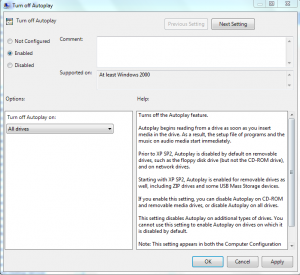
- In the right pane double click on "Turn off Autoplay".
- In the opened window select "Enabled" radio button to disable Autoplay feature.
- Click on "Ok" button to accept and confirm your selection.
- Close "Local Computer Policy" snap-in.
- Click on "Start" button and go to "All Programs".
- From the list select "Accessories".
- Right-click on "Command Prompt" and select "Run as Administrator".
- In the "User Account Control" dialog box click "Ok" button to allow Windows to use your administrative credentials to run the program.
- In the "Administrator: Command Prompt" window type "gpupdate /force" (without quotes) and press enter key.
- You can test your configuration by inserting any CD/DVD or USB Pen Drive in your computer.
