How to Make Windows 7 Computer Discoverable and Accessible on the Network?
In home or production environments when two PCs are required to connect with each other it is essential that both the computers are discoverable on the network. This helps remote users to locate the PCs and access the shared files or folders. By default Windows 7 computers are not discoverable on the network due to security reasons and this feature needs to be manually enabled when the PCs are connected. As an administrator you can make your Windows 7 computers discoverable on the network by following the steps given below:
- Logon to the computer with administrator account.
- Click on Start button.
- From the start menu go to Control Panel and from the opened window click on Network and Internet category link.
- The opened page click on Network and Sharing Centre category link and on View your basic network information and set up connections page in the left bar click on Change advance sharing settings link.
- On Change sharing options for different network profiles page under Network discovery section select Turn on network discovery radio button and under File and printer sharing section select Turn on file and printer sharing radio button.
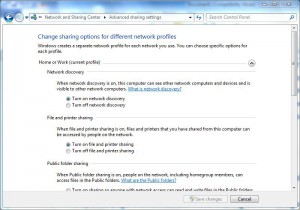
- Once done click on Ok button to accept and confirm your selection and close the window.
