Opera Browser Survival Guide
More than just giving you a few reasons on why to use Opera as your primary browser today I will do my best to give you some life-saving tips that will surely help you get the most out of it. This isn't going to be your regular "Opera tips and tricks" article because I'll leave a bunch of tricks for our next Opera-themed encounter so no matter if you're a user of this browser already or not be sure to take a look at this article since everything I'll say comes from my own experience.
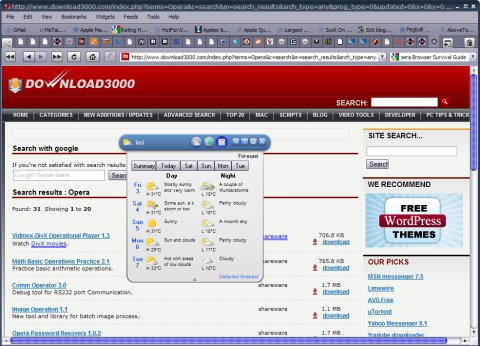
As you can see in the image above I took out the Navigation Bar keeping everything to a minimum. The reason is obvious - more space to display windows and heavy use of keyboard shortcuts. After all who needs a Back button when the Backspace key is always closer than your mouse? No other words about keyboard shortcuts here we'll have another encounter with that topic in the future probably shaped as a cheat sheet so stay close will you?
Is Opera world's fastest browser? Some tests say it is and while I won't go as far as running tests on it I will only say this - I usually open up Opera with the pages I had last time in it and we're talking about over 40 of them usually. Apart from eating up at least 300 MB of memory (371 as I write this) Opera moves pretty fast.
To be honest sometimes it has some minor issues with various sites for example Gmail. Lately I've seen Gmail freezing all of a sudden while the rest of my pages were working properly and the Opera browser window was extremely responsive. The solution? I close the tab open it again and that's all!
The builtin RSS Reader and BitTorrent client can prove to be quite useful but I can only tell you this - I am not a RSS freak but when I used this part of Opera it worked as expected while I can't say the same about the BitTorrent downloader. Why? Almost every time I use it I end up with my browser crashing down sooner or later so my advice would be to avoid using it at least for now.
Speed Dial is a great feature - don't forget that Firefox users still need to install some addons to have access to similar goodies so be sure to use it!
Session Management can also save your day if you do it properly so no matter if you set Opera to open where you left last time be sure to save a session with all pages you have open from time to time. You never know when misfortune can strike...
Blocking content with Opera doesn't require any addon - just right click the add and then choose Block Content or define rules manually by going to Tools>Advanced>Blocked Content! (be careful sometimes you may run into trouble by blocking content; for example I blocked GoDaddy ads and when I try to change my DNS settings in there the popup allowing me to do that doesn't load...)
Last item on my Opera browser survival guide today is the feature some love some hate and others ignore namely mouse gestures. I gave you the link study that page maybe even print it and once those gestures become as normal as breathing you'll be saving a lot of your precious time with Opera.
That's all for now I hope you'll find at least some of the above useful and be sure we'll get back to Opera because now we only scratched the surface a bit. Have a nice weekend! ;)
Previous: Firefox 3.5 Goodies