Turn Your Windows Clipboard Into A Multi Clipboard
I am sure my mom won't ever need more than one clipboard but what should the rest of us do when one Windows clipboard is far from enough? Thinking about me sometimes I have to paste links text fragments as well as passwords that I don't use too often and keep stored... somewhere. Moving back and forth to copy and paste information gets a real time waster so when I saw TenClips I said "This is it!" without having a single doubt that I'd go wrong. As you're going to see next I was right...
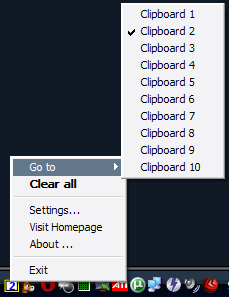
The idea behind TenClips is very simple as it happens with most freebies I use for basic tasks - you get no less than 10 (TEN!) clipboards available in Windows and you can easily switch between them using a keyboard shortcut. Pretty cool for those who need more than one clipboard don't you think?
Even more than the above you can remove text formatting when pasting stuff via TenClips and that's also extremely useful to some computer users. Enough to say that I had nightmares pasting text from Word to another applications and the other way around - I am sure you get the idea...
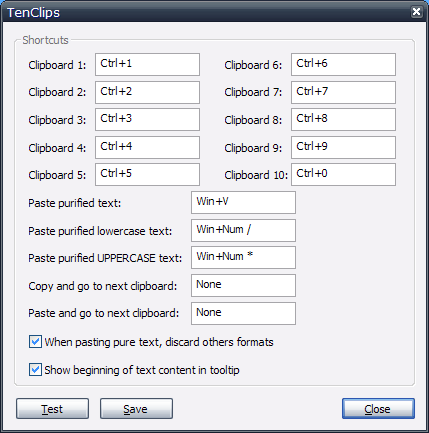
TenClips offers a very simple Settings area where you can define those 10 shortcuts needed to switch between the existing clipboards as well as keyboard shortcuts for those who need to paste purified text (text without formatting) purified lowercase and uppercase text. At last you should be aware that two additional shortcuts can be defined but they don't have any default values so you should be careful to set the shortcuts for "Copy and go to next clipboard" and "Paste and go to next clipboard."
One thing I was worried about was clipboard management but things are looking great. "How in the world will you remember what's in each of those ten clipboards?" is not a strange question and the answer is really simple - look at the icon of the program and you'll figure out the number of the currently active clipboard move your mouse to that area and the tooltip will show you enough of the content to figure out what's in there. Sweeet!
That's all folks! TenClips works with Windows 7 Vista and Windows XP including the 64 bit versions and since it's free there's no excuse for you to avoid it as long as you feel that one clipboard is never enough! ;)