Command Prompt Killing!
One of the things I really love about Linux is those commands you can use in a shell some of them so natural. For example the "kill" command. If you're a stranger to the Linux world then let me tell you that this command does exactly what it says allowing you to kill any process running on a machine as long as you have the rights to do it (try "kill -9 -1" if you want to shut down everything... and get no chance to save your work haha!)
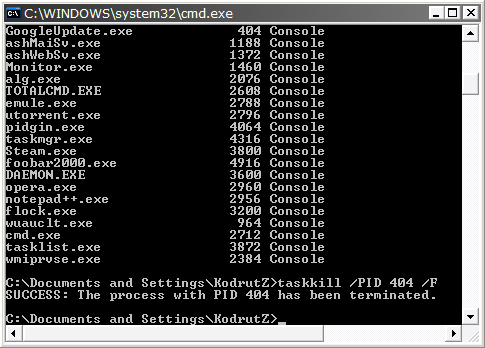
For all the command line freaks out there who are still using Windows (or they are forced to use it) there's also such a command available and since I must confess I just found out about it... I should share this precious info don't you think?
This trick works in both Windows XP and Vista could also work in other Windows versions but I didn't have the chance to try it. Anyway here it goes...
1. Open the command prompt window (just go to Start>Run and type in cmd then press Enter)
2. Type tasklist at the command prompt and press Enter; note the info available about each process - Image Name PID Session Name Session# and Mem Usage
3. If you want to kill a process you will need to know its Image Name or PID
4. For example if I want to kill my foobar2000 player I should type "taskkill /PID 4916 /F" or "taskkill /IM foobar2000.exe /F" (without the quotation marks of course)
5. Once the process has been killed you should get a message saying "SUCCESS: The process with PID x has been terminated." or "SUCCESS: The process "name" with PID x has been terminated."
That's all folks... but don't let yourself be fooled by the short guide above - there's much more to be done with the "taskkill" command. To get extensive info about the available parameters (the two possible uses described above are only the tip of the iceberg you know...) just type "taskkill /?" at the command prompt and be amazed by this terrible hidden weapon available to Windows power users!
Previous: Speed Up Windows Explorer's Network Browsing
Next: What Is svchost.exe?