Speed Up Windows Explorer's Network Browsing
Each time I am asked about ways of speeding up Windows Explorer I feel like beating up someone. Not necessarily the one asking of course because sometimes people simply don't know some things so I can't blame them for not knowing about the plethora of excellent file managers that will make your life a thousand times easier than a Windows Explorer tweaked to the bone. Anyway some tweaks can improve Windows Explorer AND any file manager you can think of and today I'm going to show you exactly such a tweak...
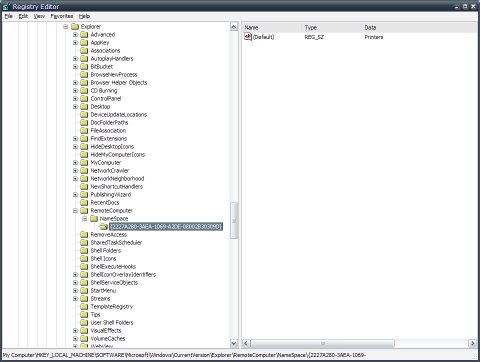
... and the best part of it is that at least for some of you this will be a two-in-a-shot tweak! How's this possible? Well I'll show you how to remove two cannonballs tied to your computer's feet these being about finding scheduled tasks and installed printers on a remote Windows 95/98/Me computer. Not exactly something you find all around don't you think? ;)
First of all be sure that you won't need to connect to a Windows 95/98/Me computer and find the scheduled tasks and printers installed on it. Anyway if you still find some computer running those operating systems let me know! I really have a weakness for completely outdated hardware and software...
Deleting the two registry keys I'll mention here should speed up browsing any remote computer including Windows XP ones. Since I don't have a network to play with at home I can't tell you anything about the improvement but I am sure you will drop a comment below to enlighten us right?
1. Open the Registry Editor (Start>Run type regedit press Enter) 2. Move to the following key: HKEY_LOCAL_MACHINESoftwareMicrosoftWindowsCurrentVersionExplorerRemoteComputerNameSpace 3. In the left pane look for {D6277990-4C6A-11CF-8D87-00AA0060F5BF} and {2227A280-3AEA-1069-A2DE-08002B30309D}; deleting the first one disables scheduled task checking while removing the second one will disable printer checking. Just be sure to backup them before anything else just in case... 4. Close the Registry Editor and restart your computer to allow the changes to take effect.
One last thing - if any of the keys is missing don't worry! Delete the one available and that's it. For example the first one wasn't available on my computer and I think I even know why - I used some tweaking tool some time ago and probably I disabled everything related to the Windows Tasks Scheduler.
That's it folks! Please don't forget to drop your comments below all right? Some results of network browsing performance tests would really be nice so thanks in advance! ;)
Previous: Download HD YouTube Videos!
Next: Command Prompt Killing!