NTFS USB Memory Sticks, Anyone?!?
In Windows almost every problem has two solutions - the fast one and the one even your grandmother could easily understand. Usually I go for the fast one especially because I like to keep my clicking to a minimum as long as I can type in some commands to get the job done (I know you may call me "command line freak" I have nothing against it). Anyway the problem with NTFS USB memory sticks is that... they don't come this way out of the box and formatting your little portable friend using the NTFS file system isn't exactly a straightforward process.
 OK but why need your memory stick to be formatted using NTFS? Is FAT32 THAT BAD? No don't worry if you're usually moving around a moderate amount of medium-sized files you shouldn't worry about that but when you try to move files larger than 4 GB... you may have a problem. A serious one I tell you.
The problem is that as long as you'll be using FAT32 you'll get the notorious "not enough free space on drive x" error when trying to accomplish the task described above even when each of those glorious 16 GB of space (or more) available on your flash drive is absolutely empty!
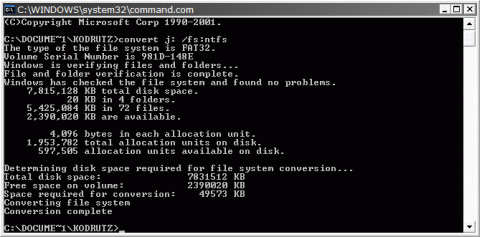
The easy way to solve this problem is to bring up the command prompt window (Win key+R type cmd press Enter) and then use the convert command. To get to know all available options just type convert /? but for our task typing convert x: /fs:ntfs (where x is the letter assigned to your flash drive) and pressing Enter should be enough! In my case it was convert j: /f:ntfs and it only took a few seconds for the operation to complete successfully.
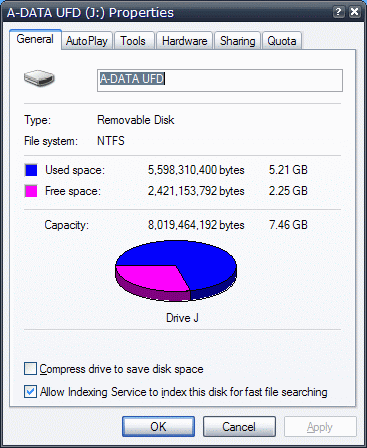 As you can see in the image above now my 8 GB A-Data flash drive uses the NTFS file system and before moving on and talk about the long way you need to follow to accomplish the same thing let's take a quick look at the good and the bad parts of having a NTFS memory stick shall we?
The good part is that you can save more files create permissions for them (and for folders of course) as well as copy files larger than 4 GB with ease. The bad part? Well you'll have to be careful to always remove the drive "safely" in order to avoid data loss and writing speed on the drive will be a bit slower although files will be read just as fast as before (to be honest I didn't notice a visible speed decrease).
Now the long way to turn your USB drive into a NTFS USB drive as I promised. First of all be sure to backup your data because this way of doing things includes formatting your drive all right?
1. After inserting the drive into a free USB port and backing up your data press the Win key+Break combo will give you access to System Properties;
2. In the System Properties window select the Hardware tab and then open the Device Manager;
3. Expand the Disk Drives branch;
4. Double click the flash drive you want to convert to NTFS or right click it and choose Properties if you really want to take it slow;
5. In the Properties window open the Policies tab and check Optimize for performance;
6. Press OK and then you can easily format the USB drive using the NTFS file system since this option wasn't available before.
That's all folks! For any additional questions or maybe your own speed tests results be sure to drop a comment below. Now you can finally enjoy your "brand new" NTFS USB memory stick! ;)
Previous: Opera Browser Survival Guide